

Appearance
Create an Affiliate Campaign Link
Create a tracking link from the affiliate dashboard with your template parameters included automatically
Do not reuse a standard campaign link created outside your affiliate dashboard. It may not appear in your workspace or include the parameters your platform needs.
Before you start
You need:
- An approved Linkrunner affiliate account
- Access to the advertiser project where you will run the campaign
- The macro names your platform uses for click ID, campaign ID, and any optional passthrough values
Read Tracking Links if you need to review how Linkrunner uses click IDs and passthrough parameters.
1. Open the advertiser project
Sign in to the affiliate dashboard
Open Linkrunner Dashboard and sign in with your approved affiliate account.
Select the advertiser project
Use the project selector to open the advertiser workspace connected to your affiliate account.
Open All Campaigns
Select All Campaigns, then click Create Link.

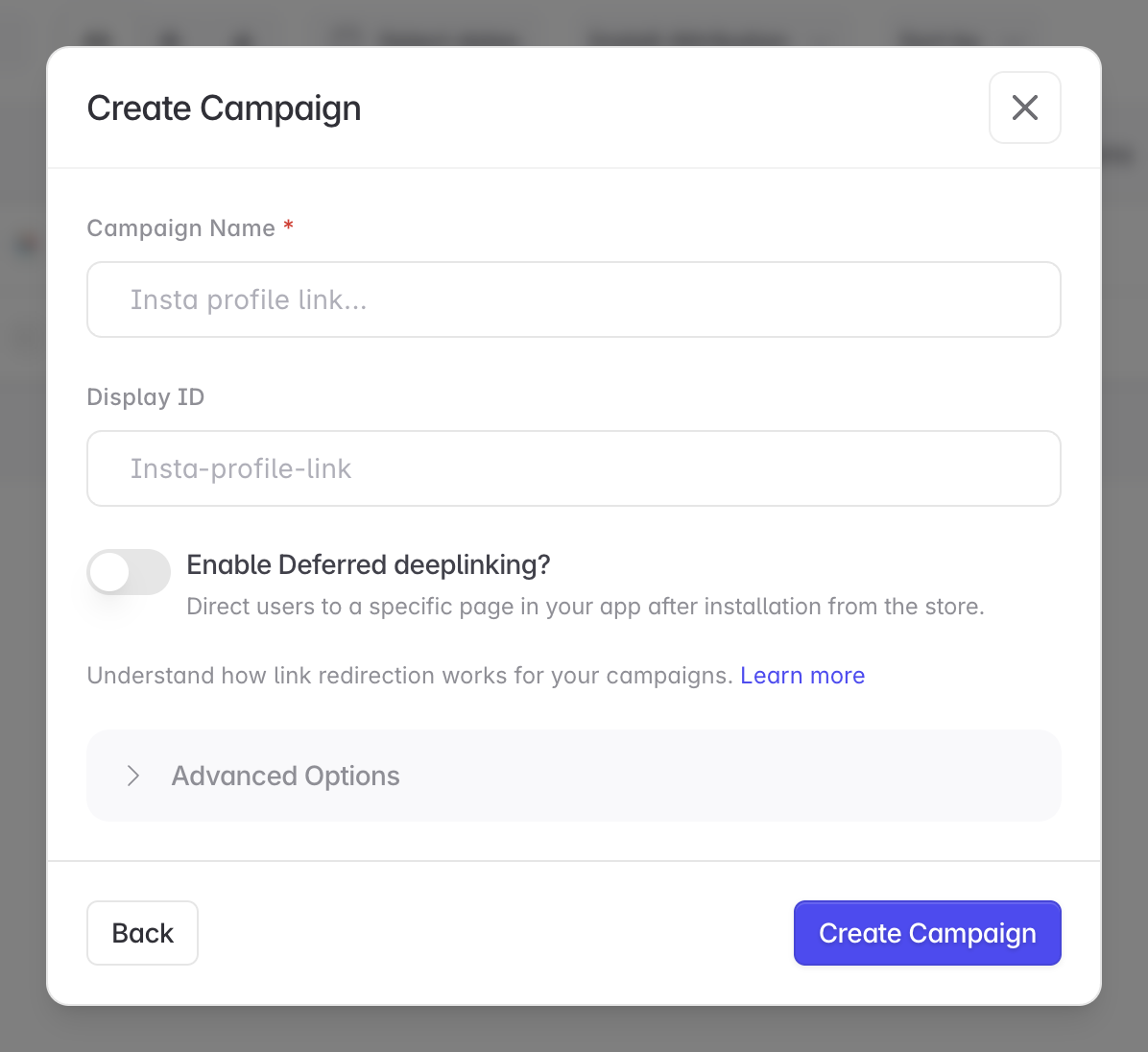
2. Create the campaign
Name the campaign
Enter a name that your team can identify in the affiliate dashboard.
Set a display ID
Add an optional Display ID if you need a stable identifier for reporting or campaign operations.
Choose link behavior
Enable deferred deep linking if the campaign should open a specific in-app destination after installation. Open Advanced Options only when the advertiser has given you the required redirect or deep-link settings.
Create the campaign
Click Create Campaign. Linkrunner creates the campaign under your affiliate account and generates its tracking-link template.
3. Copy the generated template
Find the new campaign under All Campaigns and copy its link from the Content column.
The affiliate dashboard adds the template parameters configured for your account automatically. A template may look like this:
text
https://track.example.com/?c=CAMPAIGN_ID&tid={click_id}&s2={campaign_id}Your template may use different macro names. Copy the exact URL shown in your dashboard.
Do not manually rename, remove, or add template parameters. If your platform uses different macros, update the affiliate configuration with Linkrunner before sending traffic.
4. Configure your platform
Paste the generated template into your affiliate platform as the campaign's destination or tracking URL.
Your platform must replace its own macros before it sends the click to Linkrunner. For example, the final request should contain real values:
text
https://track.example.com/?c=CAMPAIGN_ID&tid=a1b2c3d4e5&s2=campaign_88It should not reach Linkrunner with placeholders such as {click_id} or {campaign_id} still present.
5. Test before launch
- Generate a test click from your affiliate platform.
- Confirm the final URL contains a unique, resolved click ID.
- Check that the link redirects to the advertiser's intended destination.
- Confirm the click appears under the campaign in Linkrunner.
- Use Postbacks and Macros to test install and event postbacks before increasing traffic. In-app events need a mapping before they are sent.
Troubleshooting
The advertiser project does not appear
Your affiliate account does not have an active connection to that project. Ask the advertiser or Linkrunner support to connect the project to your approved affiliate account.
A campaign link does not appear in your dashboard
The link was not created under your affiliate account. Open the advertiser project in the affiliate dashboard, then create a new link from All Campaigns → Create Link.
The generated link is missing a required parameter
Do not add the parameter manually. Contact Linkrunner support to update the template configuration for your affiliate account, then create a new campaign link.
The final click URL still contains placeholders
Your affiliate platform did not substitute its macros. Check the macro syntax configured on your platform before sending more traffic. The final URL must contain resolved values instead of placeholders such as {click_id} or {campaign_id}.
Postbacks have an empty click ID
Confirm that every click sends a unique value in the generated template's click ID parameter. See Tracking Links for examples.
Need help? Contact support@linkrunner.io