

Appearance
Create deep links
Create deep links with dynamic app destination parameters, with or without campaign reporting
Create links for app destinations such as product/{variant_id} by adding your own query parameters to a Linkrunner URL. Your app receives these parameters in the deeplink field returned by getAttributionData().
You do not need to create a separate deep link record for every product, offer, or screen.
Before you start
- Configure a Linkrunner subdomain, such as
get.example.com. - Set up deep linking in your app.
- Decide which query parameters your app uses. For example,
destination=product&variant_id=987.
Choose a link type
| What you need | Link to use | Dashboard reporting |
|---|---|---|
| Attribute clicks and installs to a marketing campaign | A generated campaign link with your parameters appended | Yes |
| Send users to an app destination without campaign attribution | Your Linkrunner subdomain with your parameters appended | No |
Track the link as a campaign
Create a campaign
Open Create Campaign, enable Deferred Deep Linking, and enter the base destination your app handles.
For a product page, the base destination could be:
text
https://get.example.com/product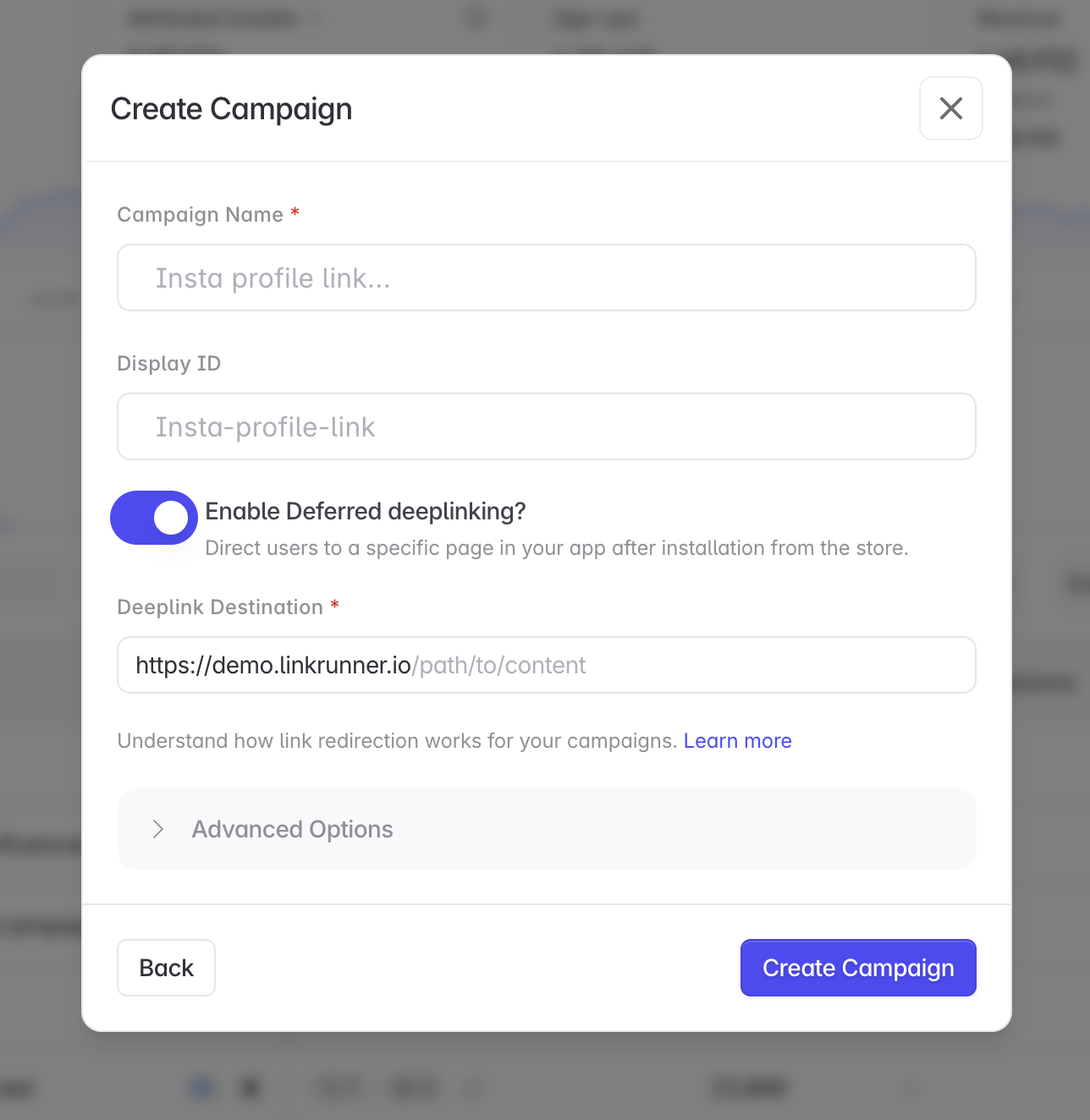
Append the destination parameters
Copy the campaign link generated by Linkrunner. Append the values when you display or send the link.
text
Campaign link:
https://get.example.com/AbCdEf

Link for variant 987:
https://get.example.com/AbCdEf?variant_id=987
Add more app-defined values when needed:
text
https://get.example.com/AbCdEf?variant_id=987&promo=summerIf the generated campaign link already contains a query string, add your first parameter with & instead of ?. Keep the campaign identifier unchanged.
A value already set on the campaign's deferred deep link takes priority over a value with the same name on the clicked link. Keep dynamic values, such as variant_id, out of the campaign destination.
Read the destination in your app
After the user installs and opens your app, call getAttributionData(). Linkrunner adds the parameters from the clicked campaign link to the configured destination:
json
{
  "deeplink": "https://get.example.com/product?variant_id=987&promo=summer"
}
Parse variant_id and route the user to the matching product page. The campaign click and install remain available in Linkrunner reporting.
Use a deep link without campaign reporting
If you do not need campaign attribution, use your Linkrunner subdomain directly:
text
https://get.example.com/product?variant_id=987&promo=summerLinkrunner returns the URL in the deeplink field from getAttributionData(). Your app parses the parameters and opens the destination as usual.
Direct subdomain links are not associated with a campaign, so they do not appear as campaign performance in the dashboard.
Get attribution data
Use the SDK guide for your platform:
Testing
- Uninstall the app from a real device.
- Open the complete link, including its query parameters.
- Install and open the app.
- Confirm that
getAttributionData()returns the expecteddeeplink. - Confirm that your app opens the correct destination.
Deferred attribution is stored from the first install. Uninstall the app before repeating a test with different parameters.
Troubleshooting
The parameters are missing from deeplink. Confirm that the parameters were present on the URL the user clicked. Check whether another redirect or URL shortener removed them.
The link does not appear under a campaign. Direct subdomain links do not have campaign reporting. Create a campaign and append your parameters to its generated link.
deeplink is null. Initialize the Linkrunner SDK before calling getAttributionData(). For deferred deep link testing, install the app through the test link.
The wrong screen opens. Confirm that your app maps the destination and parameter names correctly. Linkrunner forwards the values, while your app controls navigation.
Need help? Contact support@linkrunner.io