

Appearance
Meta Ads
Configure your Meta app integration settings to enable proper attribution tracking for your mobile app campaigns
Overview
Connect Meta Ads to send installs, registrations, purchases, and custom app events from Linkrunner to Meta. Use this guide to connect your Meta app and ad account, configure Conversions API, and map the events Meta should receive.
What You'll Get
- Automatic attribution tracking — Track installs and conversions from your Meta ad campaigns
- View-through attribution — Attribute installs from users who viewed but didn't click your ads (setup required)
- Event mapping — Map your in-app events to Meta events for postback conversion tracking
- Revenue tracking — Share revenue data with Meta to optimize for value
- Default events included — App Install events and Sign up events are captured automatically
Setup Process
Setting up Meta Ads integration involves configuring your Meta app credentials, mapping events, and setting up conversion tracking in Meta Events Manager.
Running iOS App Promotion campaigns? Meta measures iOS installs via SKAdNetwork. After completing this guide, follow the Meta SKAN Setup guide.
1. Configure Meta App Integration
This process connects your app and Meta ad account with Linkrunner.
Step 1: Get Your Meta App ID
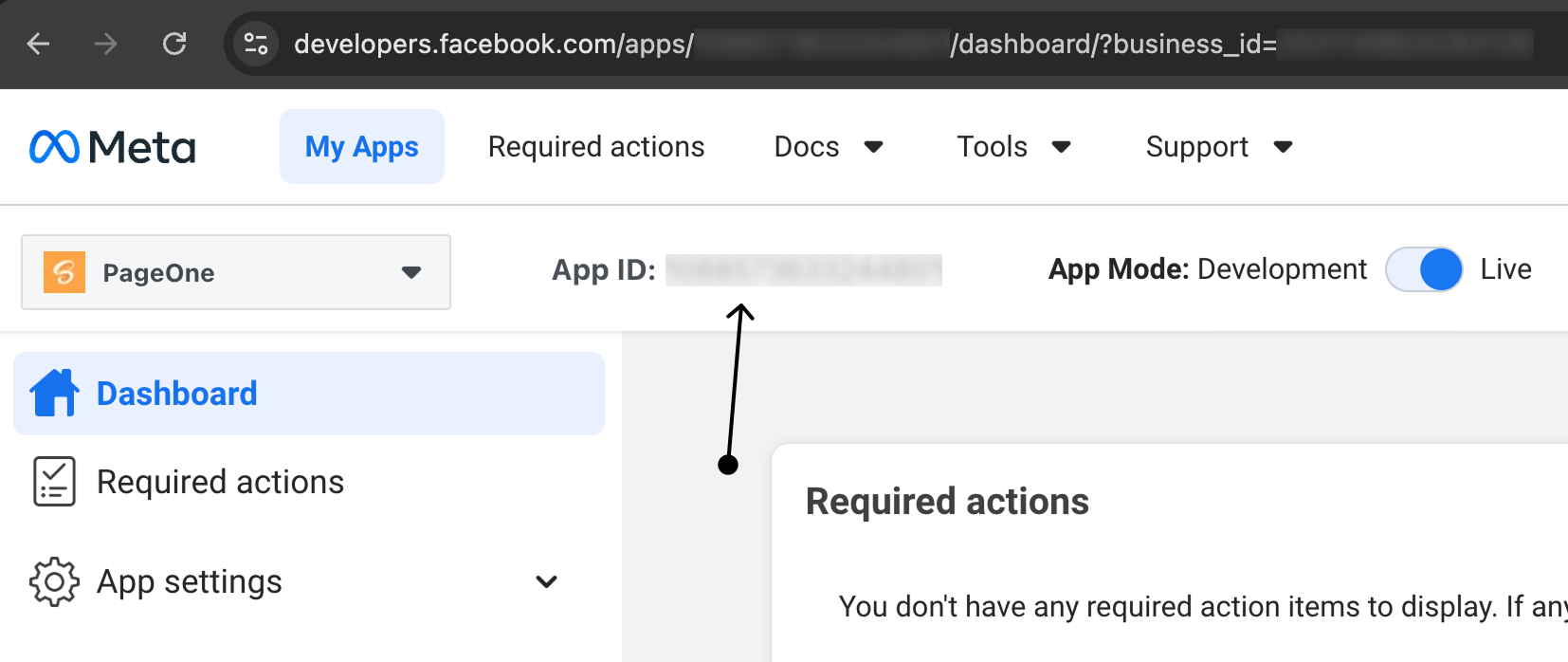
- Go to Meta for Developers
- Navigate to your App Dashboard
- Go to Settings → Basic
- Copy your App ID
Step 2: Get Your Referrer Decryption Key
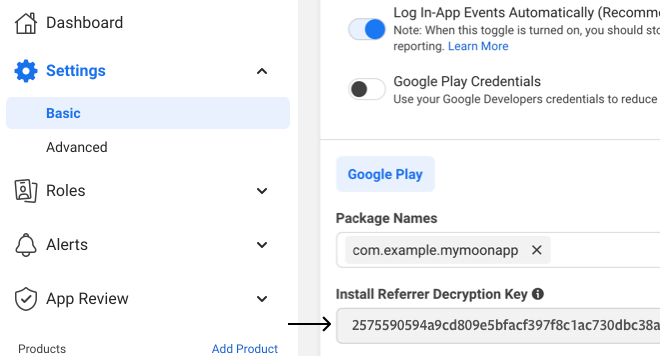
- In the same App Dashboard under Settings → Basic
- Scroll down to the Android section
- Copy the Install Referrer Decryption Key
The Install Referrer Decryption Key is required for Android attribution tracking. Make sure you have this configured in your Meta app settings.
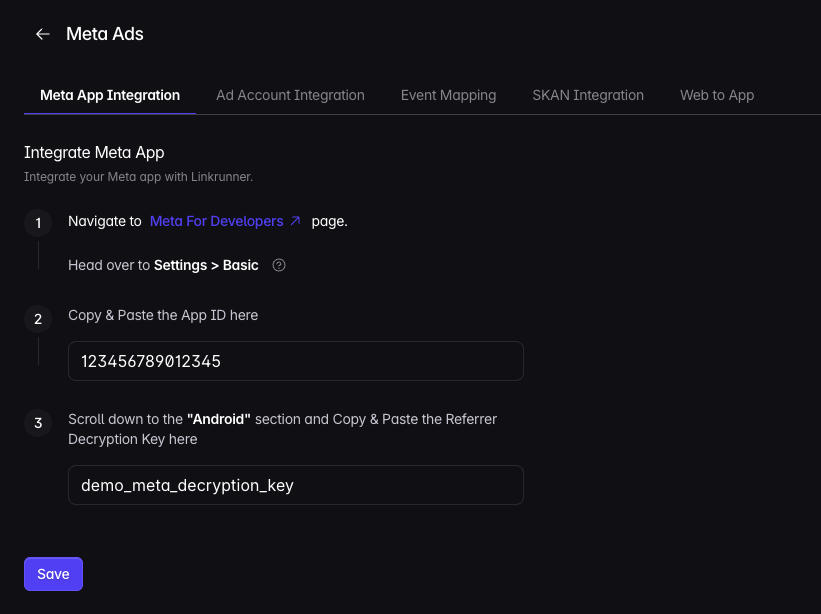
Step 3: Configure in Linkrunner Dashboard
- Go to Meta App Integration
- Enter your App ID in the designated field
- Enter your Referrer Decryption Key
- Click Save
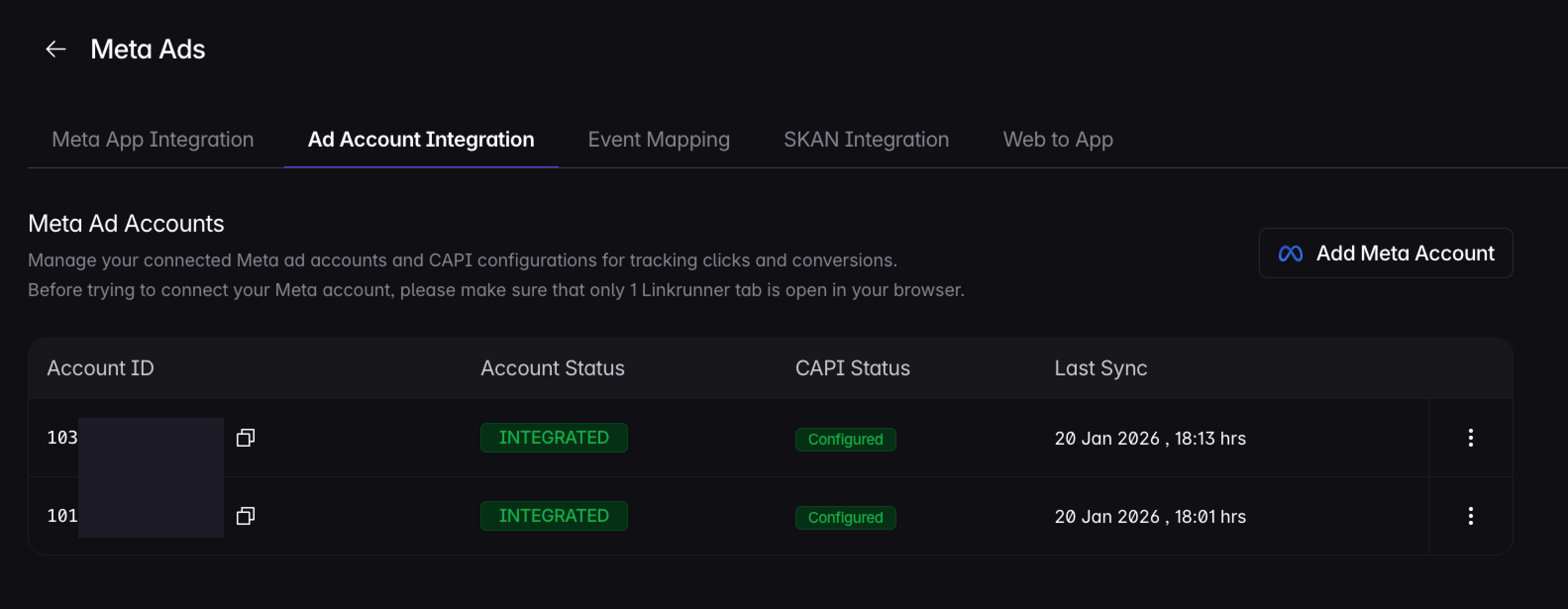
Step 4: Connect Meta Ad Account
- Go to Ad Account Integration
- Click Add Meta Account
- Log in with Meta and connect your ad account
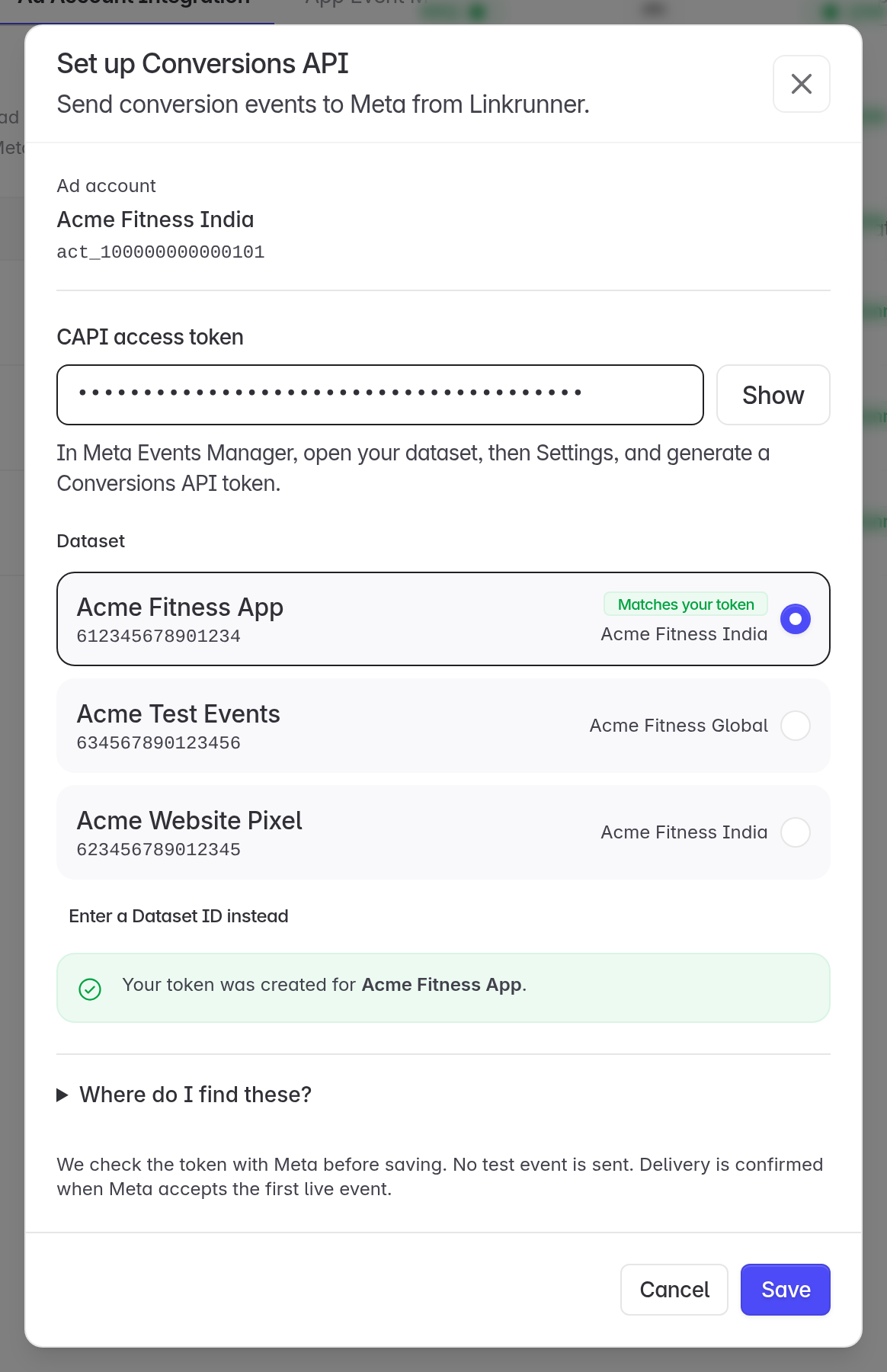
Step 5: Configure CAPI
- Click Configure Now for the connected ad account
- In Meta Events Manager, open the dataset that should receive your events, go to Settings → Conversions API, generate an access token, and paste it into CAPI access token in Linkrunner
- Under Dataset, choose the dataset. Linkrunner lists the datasets in your connected Meta ad accounts and selects the one your token was created for, marked Matches your token
- Click Save
If your dataset is not in the list, click Enter a Dataset ID instead and paste its ID from Events Manager. An App ID is not a Dataset ID. If the save is refused, see CAPI dataset errors.
2. Set Up Event Mapping
Map your app events to Meta events so Linkrunner can send postback conversions.
MobileAppInstall and CompleteRegistration are sent to Meta by default. You do not need mappings for these events.
- Go to Meta Ads Event Mapping
- Click Add Mapping
- Select your event under Your Events
- Select the matching Meta Ads Event
- Turn on Send Revenue only for revenue events, then choose the Currency
- Click Save
- Click the paper plane Send event to ad network icon to fire a test event
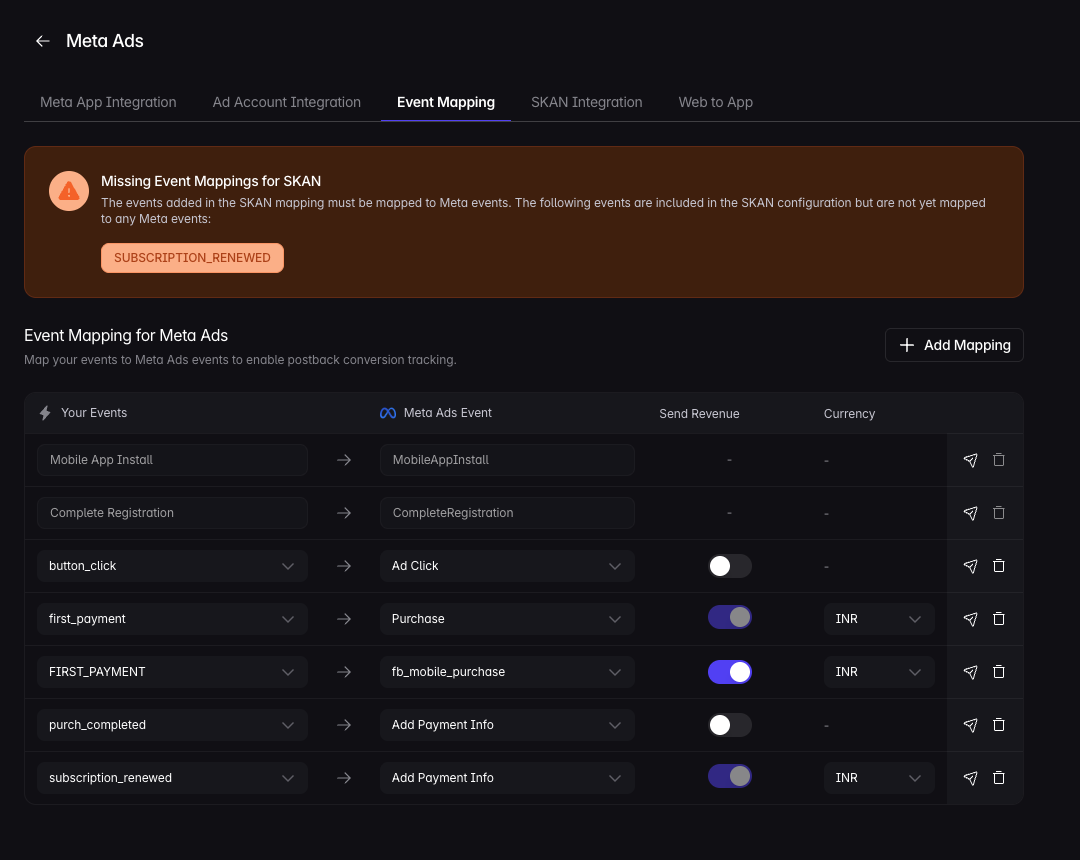
After Linkrunner fires an event, it can take up to 1 hour to appear in Meta Events Manager.
If you cannot see MobileAppInstall or CompleteRegistration in Meta Events Manager, click the paper plane Send event to ad network icon for that event.
3. Configure Events in Meta Events Manager
Use Meta Events Manager to verify that Meta receives events from Linkrunner.
- Go to Meta Ads Dashboard
- Open Events Manager → Datasets
- Select your app dataset, or click Create Dataset
- Go to Settings → Conversions API and confirm the dataset can receive Conversions API events
- Open the Events tab to view events from Linkrunner
- Create custom conversion events for the events you want to optimize campaigns on
If events do not appear in Meta Events Manager after 1 hour, verify your App ID and Referrer Decryption Key are correct.
4. Create Your First Campaign
With the integration configured, launch an App Promotion campaign in Meta Ads Manager. No tracking links are needed. Linkrunner attributes installs through the Meta install referrer (Android) and SKAdNetwork (iOS), and campaigns appear in Linkrunner automatically as installs come in.
Your app must be registered in Meta for Developers with its store listing URL, and linked to the ad account you run campaigns from. Running website campaigns that send users to your app through a landing page? Follow Meta Web to App instead.
Step 1: Start a New Campaign
- Open Meta Ads Manager and select the ad account you connected to Linkrunner
- Click + Create
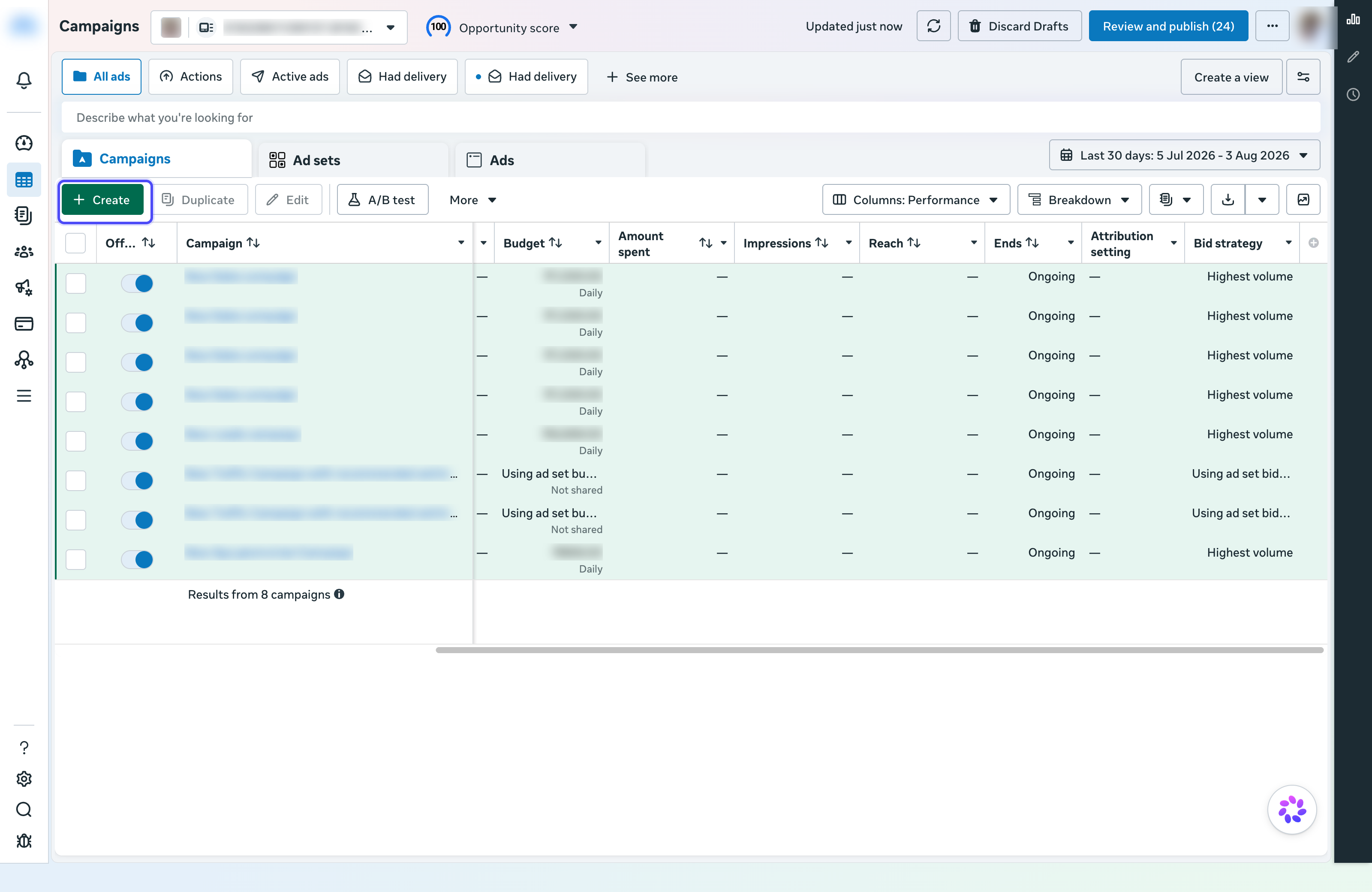
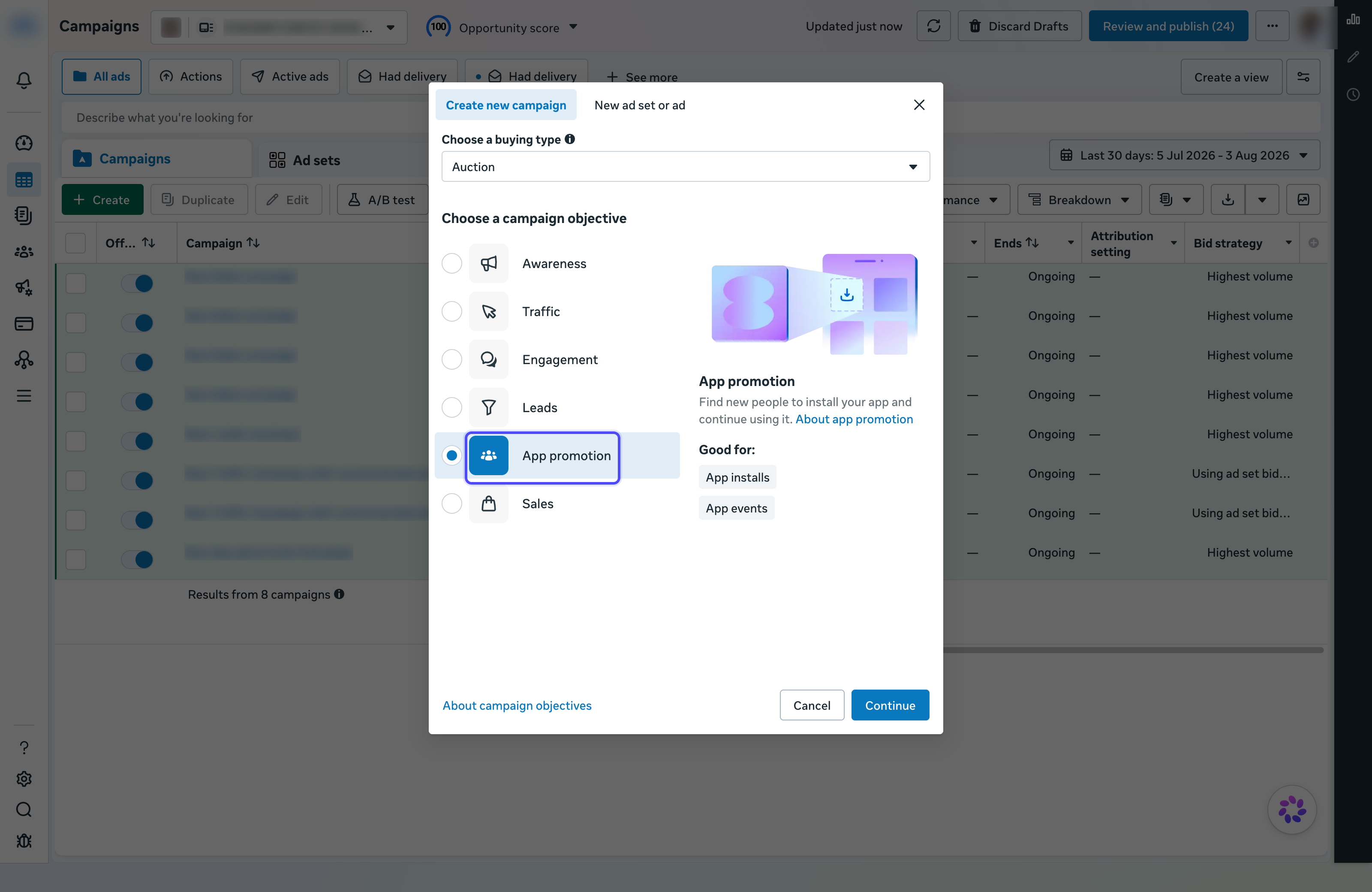
- Keep the buying type as Auction, select the App promotion objective, and click Continue
- Enter a campaign name and click Next
Meta enables Advantage+ by default, which automates audience and placements. You can switch to a manual setup during configuration. Linkrunner attributes both the same way.
Step 2: Configure the Ad Set
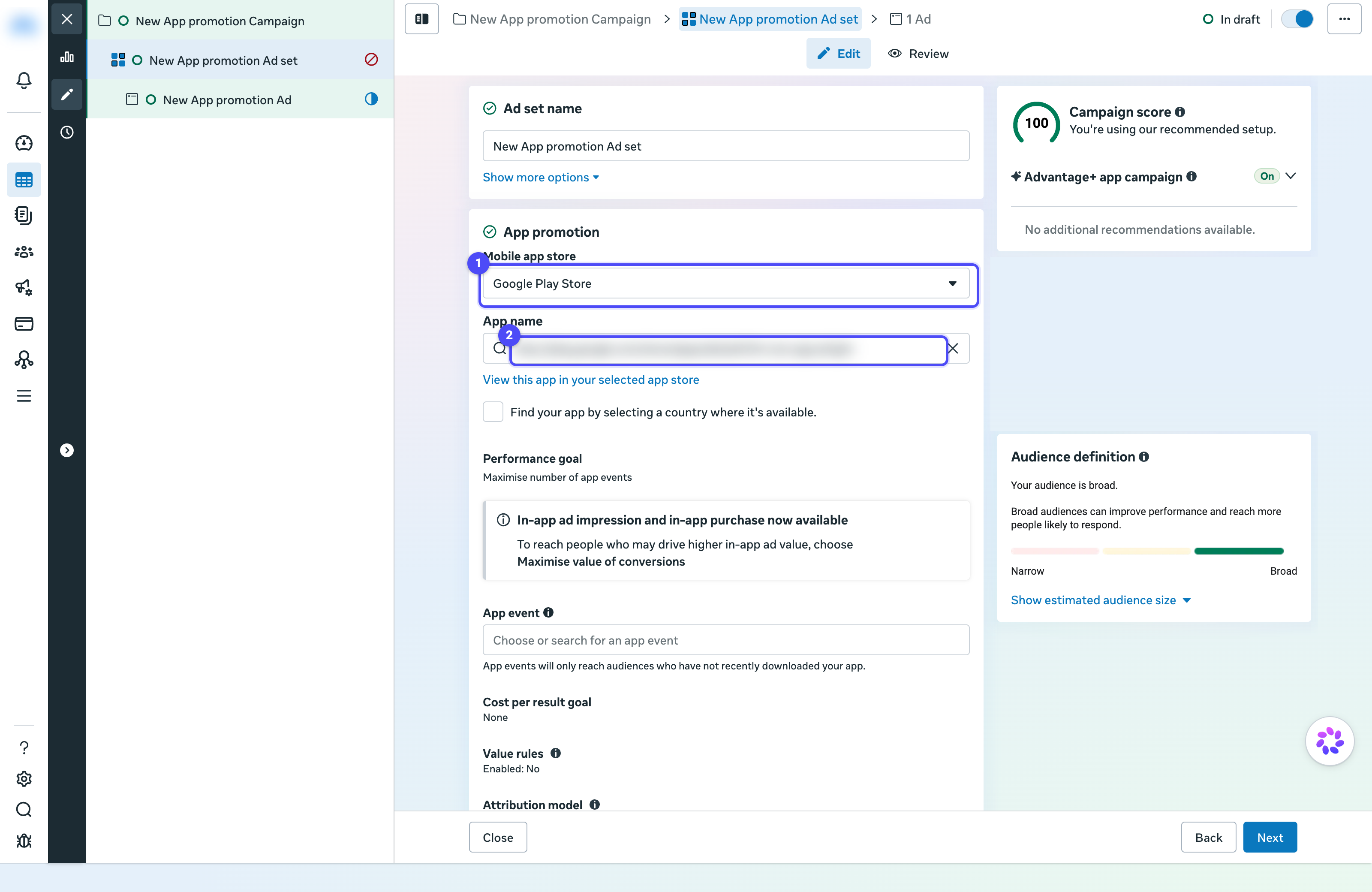
- Under App promotion, select your Mobile app store (Google Play Store or App Store) and search for your app under App name
- Set your Budget & schedule. Keep the budget low for the first campaign.
- Define your Audience (locations, age, interests)
- Leave Advantage+ placements on unless you have a reason not to
- Click Next
If your app is not listed under App name, it is not registered with Meta or not linked to this ad account.
Step 3: Create the Ad
- Choose the Facebook Page and Instagram account for the ad's Identity
- Upload your creative and write the primary text and headline
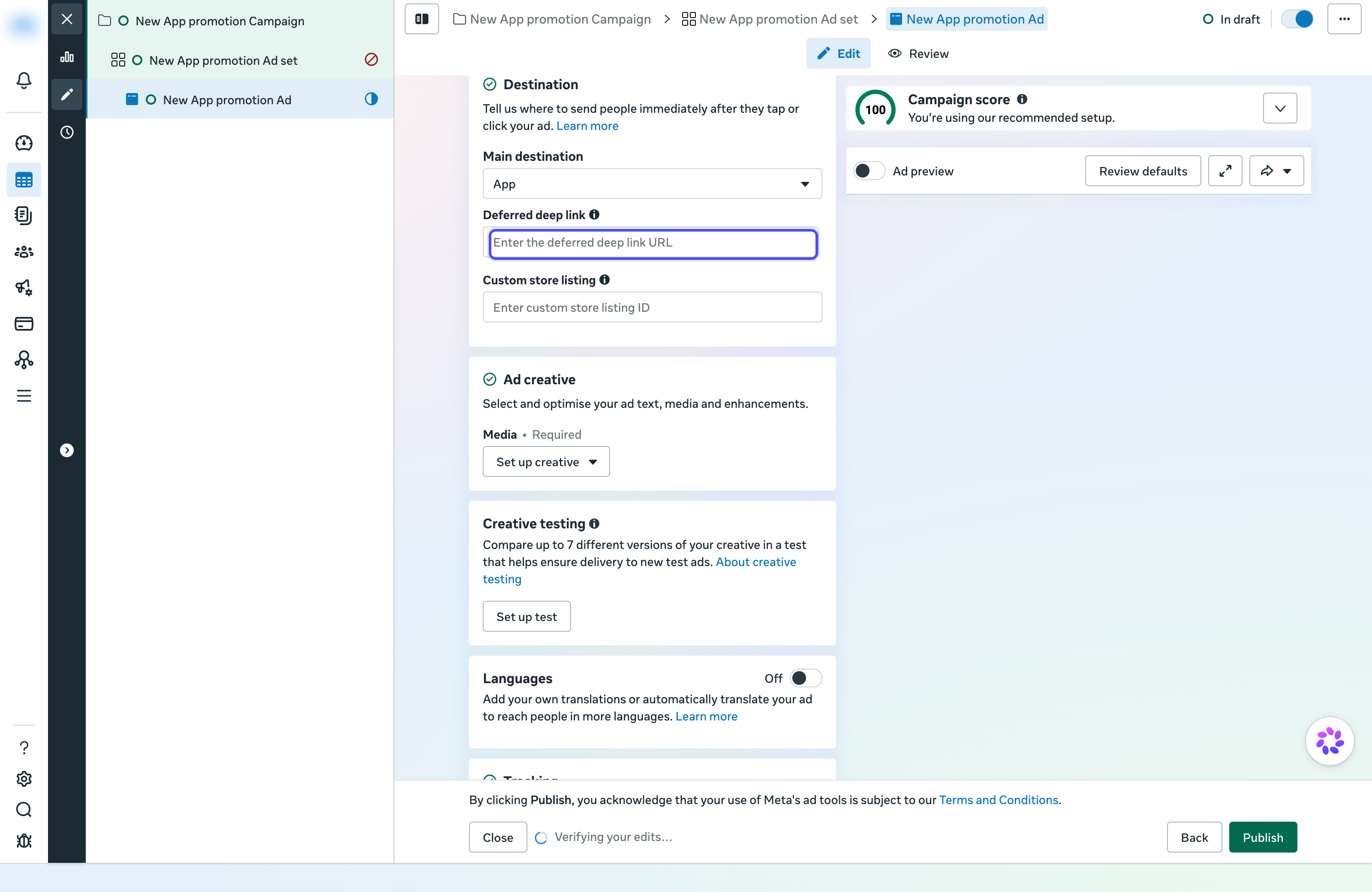
- In Destination, keep Main destination as App
- To open a specific screen after install, add your link in Deferred deep link. See Deferred Deep Linking below.
- Click Publish
Step 4: Verify the Campaign in Linkrunner
Campaigns and spend sync automatically from your connected ad account. Attribution rows appear after the campaign receives its first install.
- Open the Campaigns section in your Linkrunner dashboard
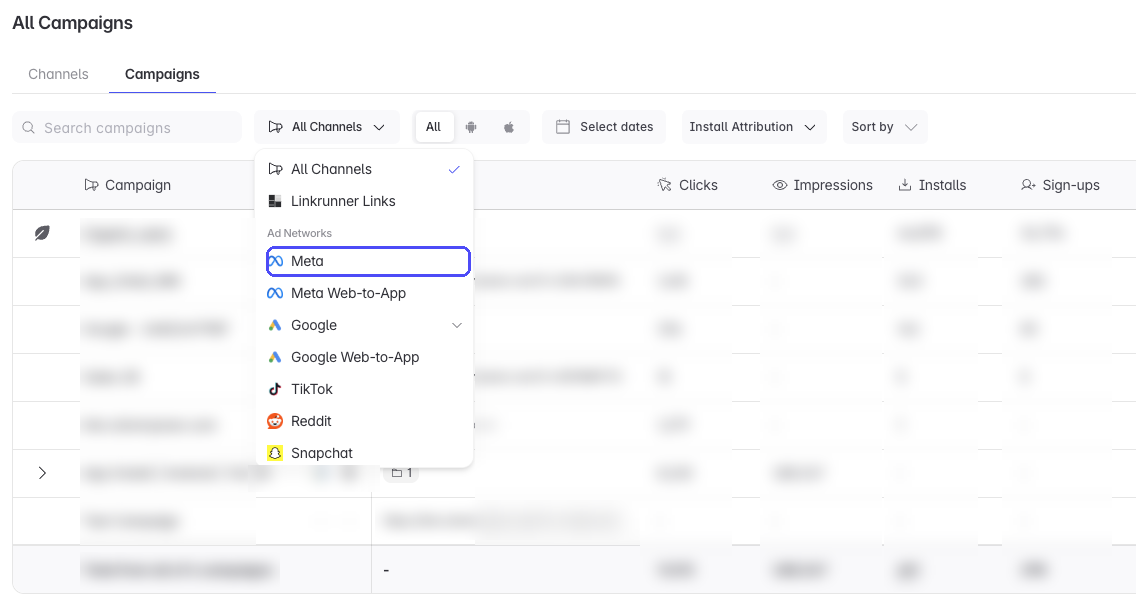
- Click All Channels and select Meta to filter your campaigns
- Open the campaign to view installs, events, and revenue attributed to it, broken down by ad set and ad creative
Campaign, ad set, and ad creative rows appear after they receive at least one install, not immediately at launch. New campaigns can also take a few hours to exit Meta's review and start delivering.
5. Deferred Deep Linking
Use deferred deep links when a Meta install should open a specific screen after first app open. Linkrunner returns the selected URL in the SDK getAttributionData() response.
Campaign, ad set, and ad creative rows appear in Linkrunner after they receive at least one install.
Meta App Promotion Deep Links
For Meta App Promotion campaigns, add the destination in Meta Ads Manager at the ad level. Linkrunner reads the ad creative app_link from Meta and returns it from getAttributionData().
- Open the campaign in Meta Ads Manager
- Edit the Ad inside your App Promotion ad set
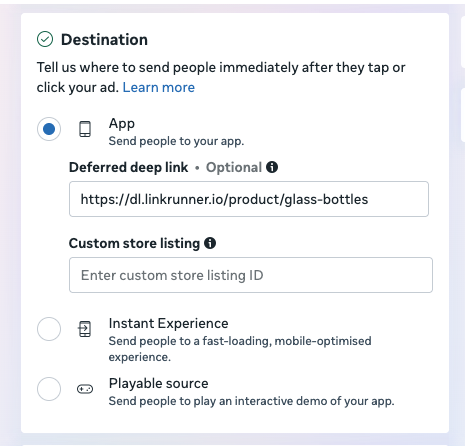
- In Destination, choose App
- Add your Linkrunner or app-link URL in Deferred deep link
- Leave Custom store listing empty unless you want Meta to send users to a specific store listing
- Publish the ad
The fresh Meta sync runs every 30 minutes for the last 2 days of active clicks and spend. When an active ad has an app_link, Linkrunner stores it on the matching ad creative. If you update or remove the app link in Meta, Linkrunner updates the auto-synced value on the next fresh sync that sees that ad.
Meta app links can use a Linkrunner domain, another app-link domain, an MMP link, or a custom scheme. If Linkrunner imports the link from Meta, the domain does not need to be added in Linkrunner.
Linkrunner syncs Deferred deep link. It does not currently sync Meta's Custom store listing value. That field controls the store page Meta opens when the app is not installed and is separate from the deep link returned by getAttributionData().
Do not use a Play Store or App Store URL as the app link. Meta exposes store destinations separately, and Linkrunner only returns the app link.
Priority Order
Linkrunner uses manual ad entity values before auto-synced Meta values:
- Manual Ad Creative Level: Used first
- Manual Ad Set Level: Used when the ad creative has no manual deep link
- Meta App Promotion App Link: Used when Meta returns an ad creative
app_link - Campaign Level: Used as the fallback
Campaign-Level Deep Links
Use this when every ad in the campaign should open the same destination.
- Navigate to the Campaigns section in your Linkrunner Dashboard
- Find your Meta campaign in the list
- Click the Edit button on the campaign row
- In the campaign settings, locate the Deferred Deep Link field
- Enter your deep link URL, such as
https://myapp.com/product/12345 - Click Save to apply the changes
Ad Set-Level Deep Links
Use this when an ad set should open a different destination from the campaign default. Manual ad set links use your Linkrunner project domain and override auto-synced Meta app links.
- Navigate to the Campaigns section in your Linkrunner Dashboard
- Find your Meta campaign in the list
- Click on the ad set name to open the ad set details
- In the ad set configuration, locate the Deferred Deep Link field
- Enter your deep link URL, such as
https://myapp.com/category/electronics - Click Update to apply the changes
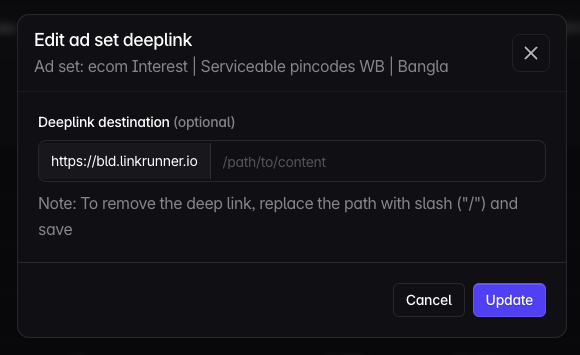
If no ad set deep link is set, Linkrunner uses the campaign deep link.
Ad Creative-Level Deep Links
Use this when one ad should open a specific product, offer, or screen. Manual ad creative links use your Linkrunner project domain and override auto-synced Meta app links.
- Navigate to the Campaigns section in your Linkrunner Dashboard
- Find your Meta campaign in the list
- Click on the ad creative name (or ad name) to open the ad creative details
- In the ad creative configuration, locate the Deferred Deep Link field
- Enter your deep link URL, such as
https://myapp.com/product/12345?promo=summer - Click Update to apply the changes
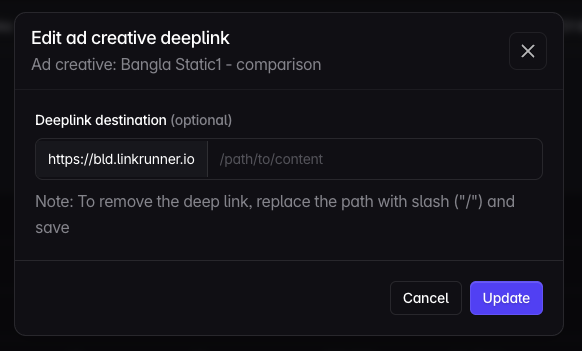
If no ad creative deep link is set, Linkrunner checks the ad set, then the campaign.
6. Enable Meta View-Through Attribution (Android)
By default, Linkrunner attributes installs from Meta ads using click-based attribution. To also attribute installs from users who viewed your ad but didn't click on it (view-through conversions), you need to enable Meta Install Referrer support.
Meta Install Referrer allows Linkrunner to receive ad campaign metadata directly from the Facebook or Instagram app installed on the user's device. This enables view-through conversion tracking, giving you a more complete picture of your Meta campaign performance.
How It Works
- A user views your Meta ad but doesn't click on it
- The user later installs your app organically
- The Linkrunner SDK retrieves campaign metadata stored by the Facebook/Instagram app on the device
- Linkrunner attributes the install back to the original Meta ad view
Setup
To enable this, you need to make your Facebook App ID available to the Linkrunner SDK in your Android app's AndroidManifest.xml.
Add the following to your AndroidManifest.xml:
xml
<meta-data android:name="com.linkrunner.FacebookApplicationId" android:value="@string/facebook_application_id" />And add your App ID to strings.xml:
xml
<string name="facebook_application_id" translatable="false">YOUR_FACEBOOK_APP_ID</string>Requirements
- Android SDK version 3.5.2 or higher
- Flutter SDK version 3.6.2 or higher
- React Native SDK version 2.6.2 or higher
- Users must have Facebook app version 428.x.x+ or Instagram app version 296.x.x+ installed on their device
View-through attribution requires the Facebook or Instagram app to be installed on the user's device. If neither app is present, only click-based attribution will be available.
For more details, see the Meta Install Referrer documentation.
Test the complete preview, install, and first attribution response with Meta Android attribution testing.
FAQ and Discrepancies
For answers to common questions and an explanation of why numbers in Meta Ads Manager may not exactly match Linkrunner, see Meta Ads FAQ and Discrepancies.
Troubleshooting
CAPI dataset access errors
If the modal refuses the configuration, nothing was saved.
- This is your Meta App ID: the Dataset ID you chose or saved is your app's ID, not a dataset. Click the suggested dataset, or choose the dataset that should receive your events. You do not need a new token.
- This token belongs to another dataset: the ID you entered is not one of your datasets, and your token was created for one that is. Use the suggested dataset, or generate a token from the dataset you want in Events Manager.
- Meta rejected this token or it has expired: generate a new token for the same dataset in Events Manager under Settings → Conversions API, then replace it in Linkrunner.
- Meta unavailable, rate limited, or unexpected response: your saved configuration is unchanged. Wait and retry.
- Save could not be confirmed: click Reload configuration and review the saved values before retrying.
- Configuration changed during the check: reopen the configuration and try again.
Two notes can appear without blocking the save:
- Your token was created for a different dataset: Meta lists another of your datasets for this token. You can save, but Meta may reject events sent to this dataset. Pick the suggested dataset unless you are sure.
- Meta doesn't say which dataset this token belongs to: some tokens do not report their dataset. You can save, and the setup is confirmed when Meta accepts the first live event.
If your datasets do not load, your Meta login may not have access to them. Enter the Dataset ID from Events Manager instead, or reconnect the ad account with a login that can see the dataset. If the list says it may be missing a dataset, one of your ad accounts did not answer; enter the ID if yours is not shown.
Conversions API is set up means the token matches the dataset. Delivery is confirmed only when Meta accepts a live event, so continue with event mapping and check Test Events or Overview in Meta Events Manager.
If the error persists, contact support@linkrunner.io with the dataset ID, ad account ID, exact error, and a screenshot with the token masked. Never send access tokens, app secrets, or referrer decryption keys in WhatsApp, email, or screenshots.
Events Not Showing Up in Meta
- Verify your Referrer Decryption Key is correct
- Check that your dataset is configured to receive Conversions API events
- Wait up to 1 hour for events to appear in Meta Events Manager
- Test your event mappings using the paper plane Send event to ad network icon in Linkrunner
Campaigns Not Appearing in Dashboard
Campaigns will only appear in the Linkrunner dashboard after the first install comes through that campaign, not immediately when the campaign is launched.
Before troubleshooting, verify:
- App is live with Linkrunner SDK — Ensure your app is deployed with the Linkrunner SDK integrated and has 100% rollout to users
- Meta decryption key is configured — Verify the Install Referrer Decryption Key is correctly added in your Linkrunner dashboard settings
- Campaigns are running — Confirm your Meta ad campaigns are active and serving impressions
- First install received — Campaigns appear only after the first user installs your app via that campaign
Campaigns do not appear immediately after launch. You must wait for at least one install to come through the campaign before it will show up in your dashboard.
Revenue Data Not Tracking
- Confirm "Send Revenue" is enabled in your event mapping
- Verify the correct currency is selected
- Ensure your app is sending revenue values with events
Need help? Contact support@linkrunner.io.